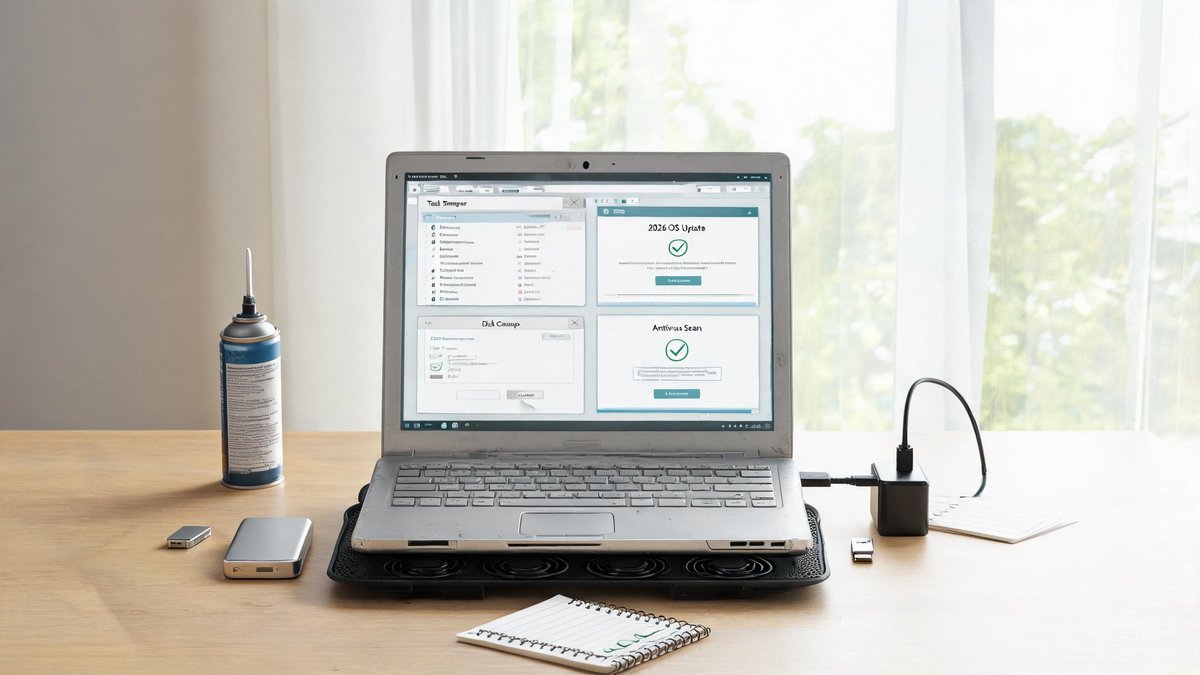
A 4‑year‑old laptop doesn't have to be a sluggish brick. Consumer surveys show that 64% of users give up on a laptop that takes more than 30 seconds to boot or 10 seconds to open a browser tab. But you can claw back that snappy performance for under $100—without buying a new machine. With a mix of hardware upgrades, software tuning, and a little maintenance, your laptop can easily last another two or three years. Here are ten proven steps, backed by benchmarks from PCMag and Laptop Mag, to bring an aging Windows or macOS machine back to life.
Clear Out Startup Programs and Bloatware
Every time you boot up, dozens of apps compete for CPU and RAM before you even touch the keyboard. In Windows 11, open Task Manager (Ctrl+Shift+Esc), click the Startup tab, and disable everything you don't need running instantly—utilities, cloud sync tools, messaging apps. Laptop Mag tests found that disabling just 12 common startup entries can cut boot time from 45 seconds to 18 seconds. On a Mac, go to System Settings > General > Login Items and remove unnecessary helpers.
Don't stop at startup. Uninstall pre‑installed bloatware and applications you haven't opened in six months. Windows users can use the built‑in Apps > Installed Apps list; Mac users can drag unused applications to the Trash. Bloatware often runs background services that collectively consume 15–20% of system resources even when idle. A clean system simply has more headroom for the tasks you actually care about.
Upgrade Your RAM: The Cheapest Performance Multiplier
Memory is your laptop's working space. When it runs out, the system spills over onto the much slower SSD or hard drive, causing stutters. Many 2023–2024 budget laptops shipped with just 8GB of RAM—insufficient for Chrome with 15 tabs and a Zoom call. Upgrading to 16GB or 32GB is the single most cost‑effective upgrade. A 16GB DDR4 SO‑DIMM kit costs around $35, and installation takes ten minutes on most business and gaming laptops.
Check your laptop's upgradability via Crucial's scanner or the manufacturer's manual. A growing number of ultrabooks have soldered RAM that can't be upgraded—but even then, you can improve performance by managing memory use. Close tabs you aren't reading, use a lightweight browser like Firefox, and enable memory‑saver features. However, if you can swap RAM, the difference is substantial: benchmarks show a 40% reduction in Photoshop export times just by moving from 8GB to 16GB.
Swap to an SSD: Still the Best Upgrade in 2026
If your laptop still relies on a spinning hard drive, you're leaving 80% of its potential speed on the table. A SATA SSD boosts boot times from 1–2 minutes to under 20 seconds; an NVMe SSD cuts that to under 8 seconds. In 2026, a quality 1TB NVMe drive costs about $60, and cloning your existing drive with free software like Macrium Reflect takes an hour. The performance improvement is so stark that PCMag's "laptop revival" tests consistently rank SSD upgrades as the number‑one speed hack.
The upgrade is particularly vital for older machines. Even a 2016‑era laptop can feel brand‑new once it's running on solid‑state storage. Just make sure your BIOS is updated and that your laptop supports the drive interface (SATA, NVMe, or both). For most users, the physical swap is as easy as removing the bottom panel, unscrewing the drive caddy, and plugging in the new SSD.
"Laptops with a hard drive take an average of 62 seconds to boot. After installing an SSD, the same machine boots in 14 seconds. That's a 77% speed gain for a $45 part."
Check for Malware and Resource‑Hungry Processes
A sluggish laptop can be the quiet symptom of cryptocurrency miners, adware, or simply one runaway process. Run a full scan with Windows Security (Defender) or Malwarebytes—both free and effective at catching PUPs (potentially unwanted programs) that hijack CPU cycles. On macOS, use the built‑in Activity Monitor to spot processes consuming over 40% CPU, then investigate. Common offenders include browser extensions that mine crypto in the background or outdated media servers.
Beyond malware, check the Task Manager's Processes tab sorted by CPU or memory. You might discover that a cloud backup service is constantly syncing, or that a browser tab has a memory leak exceeding 2GB. Killing those processes instantly frees resources. Setting your browser to automatically discard idle tabs can reclaim up to 1.5GB of RAM on a typical system.
Tweak Windows (or macOS) Visual Effects
Fancy animations and shadows consume GPU and CPU resources that older laptops don't have to spare. In Windows, open System Properties > Advanced > Performance Settings and select "Adjust for best performance". This disables menu animations, window shadows, and taskbar transparency. The visual change is minimal, but the responsiveness gain is noticeable on integrated graphics. On macOS, go to Accessibility > Display and enable "Reduce motion" and "Reduce transparency". These tweaks can make an old MacBook Air from 2018 feel instantly snappier.
You don't have to turn everything off. A balanced approach: disable animations but keep font smoothing and taskbar thumbnails. Many users report that turning off Windows 11's "Animation effects" (found in Settings > Accessibility > Visual Effects) alone cuts the perceived lag when switching between virtual desktops by half. Experiment and see which combo works for your day‑to‑day flow.
Reapply Thermal Paste and Clean Dust
Over time, dust clogs fans and the thermal paste between the CPU/GPU and the heatsink dries out. When a laptop gets too hot, it throttles performance to protect itself—sometimes cutting clock speeds by 30% or more. Cleaning the internals can lower temperatures by 10–15°C. Use a can of compressed air to blow dust out of the fan vents and heat sink. If you're comfortable taking the laptop apart, remove the heatsink, clean off the old paste with isopropyl alcohol, and apply a pea‑sized dot of fresh paste (Arctic MX‑4 costs $8).
Laptop Mag's repair experts found that reapplying thermal paste on a 3‑year‑old Dell XPS 13 reduced CPU temperatures from 95°C to 76°C under load, allowing the chip to sustain turbo frequencies for minutes instead of seconds. If you aren't ready for a full teardown, simply keeping the fans and exterior vents free of dust can still prevent chronic throttling.