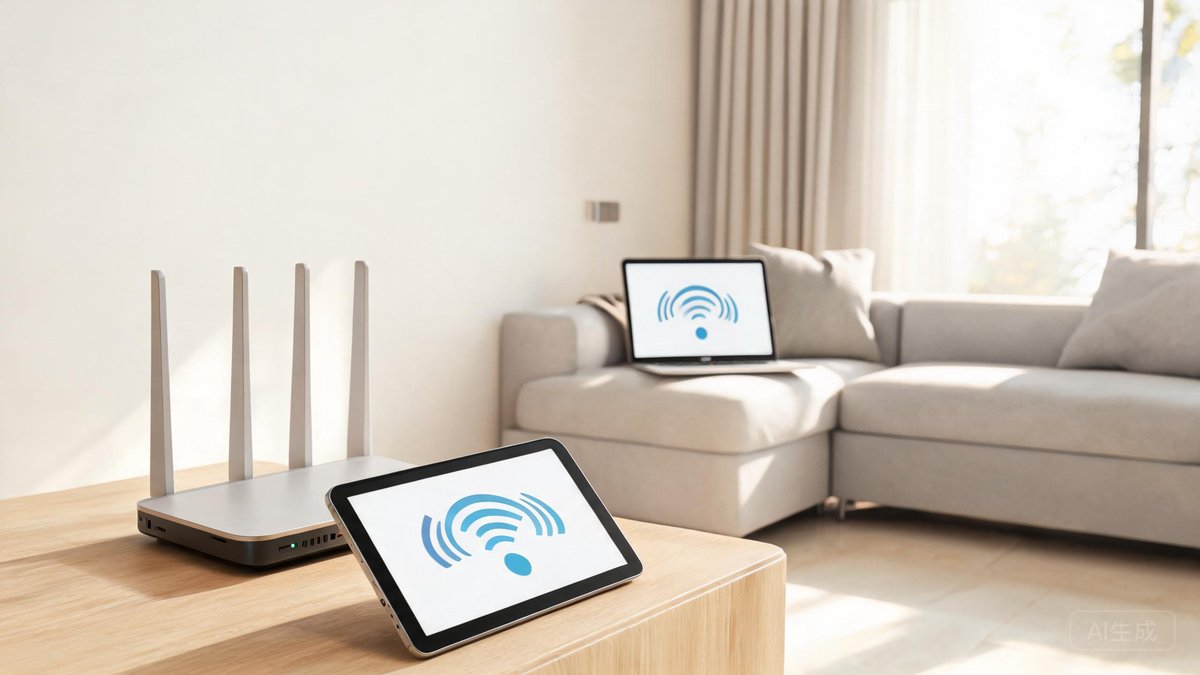
You pay for a 500Mbps internet plan, but your laptop in the bedroom barely pulls 15Mbps. Your video call freezes when you walk from the kitchen to the living room. The backyard is a complete dead zone. Slow and unreliable Wi-Fi is frustrating, and it almost always comes down to how your network is set up, not how much bandwidth your ISP sells you. The good news is that most home Wi-Fi problems can be fixed in an afternoon without buying a single new piece of hardware.
This guide walks you through router placement mistakes that kill your signal, how to decide between a mesh system and extenders, and the configuration tweaks that squeeze every last megabit out of your connection.
Router Placement: The Free Fix You Are Probably Ignoring
The single biggest factor in Wi-Fi performance is where your router sits. A router tucked inside a media cabinet behind a stack of DVDs and a soundbar will deliver a fraction of the speed it is capable of. Wi-Fi signals are radio waves, and radio waves do not pass through dense materials cleanly. Brick walls, concrete floors, metal filing cabinets, large mirrors, and even fish tanks absorb or reflect signals. Placing a router behind any of these can cut your speed by 50 percent or more, measured at just 20 feet away.
Position your router as close to the center of your home as possible, at least 3 feet off the ground, and away from walls and large metal objects. If your internet entry point is in a corner of the basement, running a longer Ethernet cable to place the router on the main floor is one of the highest-impact changes you can make. A 50-foot Cat6 Ethernet cable costs under $15 and can move the router from the worst spot in the house to the best one. Antennas on routers with external ones should be oriented vertically for horizontal coverage and one horizontally if you need to reach a floor above.
Also check for interference from other electronics. Microwaves, baby monitors, cordless phones, and Bluetooth speakers all operate on the 2.4GHz band, which is the same frequency used by older Wi-Fi. Modern routers use 5GHz and 6GHz bands that avoid most of this congestion, but many smart home devices still rely on 2.4GHz. Keeping your router at least 6 feet from major appliances makes a measurable difference.
Understanding Wi-Fi Bands: 2.4GHz, 5GHz, and 6GHz
If your router is more than two years old, it probably only supports 2.4GHz and 5GHz bands. Newer Wi-Fi 6E and Wi-Fi 7 routers add the 6GHz band, which is a major upgrade for crowded environments. The 2.4GHz band travels farther and penetrates walls better but tops out around 100Mbps in real-world conditions and suffers from congestion. The 5GHz band is faster, delivering 300-700Mbps depending on your router and distance, but its range is shorter. The 6GHz band, available on Wi-Fi 6E and 7 hardware, adds up to seven additional 160MHz channels with zero interference from older devices, easily hitting 1Gbps throughput at close range.
Most modern routers ship with band steering enabled by default, which automatically assigns devices to the best band. This works well most of the time, but occasionally a device will latch onto 2.4GHz when 5GHz is available. If you notice a laptop or streaming box underperforming, check the router admin panel to see which band it is using. You can often force a device to prefer 5GHz by giving the 5GHz network a different SSID name and connecting to that one manually.
For most homes under 2,000 square feet, a single Wi-Fi 6 router placed centrally will cover every room with solid 5GHz performance. For homes over 2,500 square feet or multi-story layouts, you will likely need more than one access point.
Mesh Networks: Worth It for Larger Homes
A mesh Wi-Fi system replaces a single router with two or three nodes that communicate wirelessly to blanket your home in consistent coverage. Unlike a router-and-extender setup where each extender creates a separate network name, a mesh system presents one unified SSID. Your devices seamlessly hop from node to node as you move around. The difference in daily use is invisible, which is the whole point.
In 2026, good mesh systems start around $150 for a two-pack covering up to 4,000 square feet. The Amazon Eero 6+, TP-Link Deco XE75, and Google Nest Wifi Pro are solid mid-range picks that support Wi-Fi 6 or 6E. At the high end, the Netgear Orbi 970 series supports Wi-Fi 7 with quad-band radios and can deliver 2Gbps+ throughout a 6,000-square-foot home, though a three-pack runs close to $1,500.
Mesh nodes need to be placed roughly halfway between the main router and the dead zone, not inside the dead zone itself. If a node cannot get a strong signal from the main router, it simply rebroadcasts a weak signal, and your speed drops. Most mesh apps include a signal quality indicator during setup. Trust it. If the app says the node is too far, move it closer to the main unit. A wired backhaul, where you run Ethernet cables between mesh nodes, transforms performance and is worth the effort for any node serving a home office or media center.
Wi-Fi Extenders: Cheap Solution, Real Limitations
Wi-Fi extenders, also called repeaters, pick up your router's signal and rebroadcast it. They cost $20-40 and can be set up in minutes by pressing a WPS button or scanning a QR code. For a small dead zone in a single room, like a back bedroom or a garage, an extender can be a perfectly adequate fix.
The trade-offs are real. Most extenders halve your throughput because they use the same radio to communicate with both the router and your devices. If your main router delivers 200Mbps to that area, a typical extender will deliver roughly 80-100Mbps after overhead. Extenders also often create a separate network name, so moving between the main network and the extended one requires a manual switch or causes a brief disconnection. Some newer extenders support mesh-like roaming, but the experience is less polished than a true mesh system.
Use an extender when you have one specific dead zone and do not want to spend more than $50. For whole-home coverage issues affecting multiple rooms, a mesh system is the better long-term solution.
Channel Selection and Interference Management
Your router broadcasts on a specific channel within each band, and if your neighbors' routers are using the same channel, they interfere with each other. On the 2.4GHz band, only channels 1, 6, and 11 do not overlap, and in apartment buildings all three are typically crowded. The 5GHz band has more channels and less congestion, but it still pays to check.
Most routers default to automatic channel selection, which works reasonably well. If you are experiencing intermittent slowdowns that do not match a pattern, manually selecting a less congested channel can help. Use a free Wi-Fi analyzer app like NetSpot on Mac or WiFi Analyzer on Android to see which channels your neighbors occupy, then switch your router to the least crowded option. For 2.4GHz, stick to channel 1, 6, or 11. For 5GHz, pick any channel with minimal neighboring networks.
Another often-overlooked setting is channel width. Wider channels (80MHz or 160MHz on 5GHz and 6GHz) deliver higher peak speeds but are more susceptible to interference. If you live in a detached house with space between neighbors, use the widest channel your router supports. In an apartment, narrower 40MHz or even 20MHz channels often provide more consistent performance because they avoid overlapping with neighboring networks.
When to Upgrade Your Router or Modem
Routers age out faster than most people realize. If your router does not support Wi-Fi 6 (802.11ax) released in 2019, you are missing out on significant range and efficiency improvements. Wi-Fi 6 routers handle multiple devices better than Wi-Fi 5 models because of OFDMA, a technology that splits channels into smaller subcarriers so multiple devices can transmit simultaneously without slowing each other down. In a home with 20 to 30 connected devices including phones, laptops, smart speakers, thermostats, and cameras, Wi-Fi 6 can feel like a completely different internet connection.
Your modem matters too, especially if you rent one from your ISP for a monthly fee. ISP-provided modem-router combos are notoriously mediocre, and the rental fee of $10-15 per month adds up to $120-180 per year for hardware you never own. A solid standalone modem like the Arris S33 costs around $160 and pays for itself in about a year. Pair it with a dedicated router rather than a combo unit, and you get better performance, more configuration control, and easier upgrades later.
Before spending any money, verify your internet plan speed at the modem with a wired Ethernet connection. If a wired test shows speeds far below what you pay for, the problem is your ISP or modem, not your Wi-Fi setup. Call your ISP with the speed test results. They can often reprovision the modem remotely or send a technician to check the line signal.
Pro Tip: Restart your router and modem once every two months. Memory leaks and firmware quirks accumulate over time and slowly degrade performance. A one-minute power cycle clears them out and often restores speed you did not realize you had lost.
Related Articles
How to Build a Home Office Setup for Productivity
Create a workspace that keeps you focused and comfortable all day.
Smart Home Devices Worth Buying and Skipping
A solid Wi-Fi network is the foundation every smart home needs.
Cybersecurity Basics: Protect Yourself Online
Secure your home network and keep intruders off your Wi-Fi.